 Scoreboard
What you get
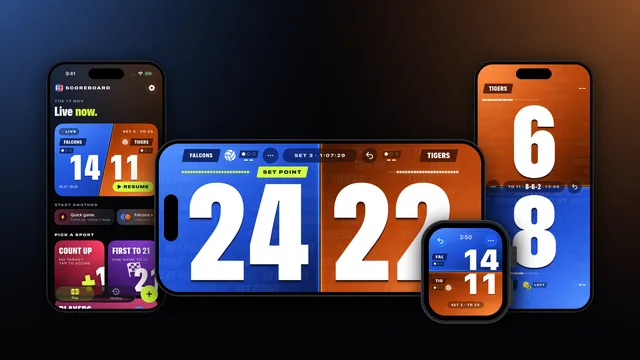
Scoreboard Live has one widget, called Score. It shows the game on your board, or your last result. With no game and no result, it shows a START A GAME card.
| Where | Sizes |
|---|---|
| Home Screen | Small and medium |
| Lock Screen | Circular, rectangular and inline |
| Apple Watch complication | Circular, rectangular, inline and corner |
Add the widget to your Home Screen
- Touch and hold an empty spot on your Home Screen.
- Tap the + button, then search for Scoreboard.
- Pick Score, choose a size, and tap Add Widget.
Add it to your Lock Screen
- Touch and hold the Lock Screen, then tap Customize.
- Tap the area for widgets, then search for Scoreboard and pick Score.
Add a complication to your watch face
- On your Apple Watch, touch and hold the watch face, then tap Edit.
- Pick a spot for a complication and choose Scoreboard.
Good to know
- Widgets show the score. You score in the app, so a stray tap never costs a point.
- Tap a widget to open the board, to start a new game, or to rematch your last game.
- Widgets are free. A watch complication needs the watch app, and scoring on the watch needs the unlock.
- In the clock sports, widgets also show the period and the clock, and in baseball and softball the inning.
Free
You do not need the unlock for this.